· guides
BirdFont: a free editor with a licensing catch
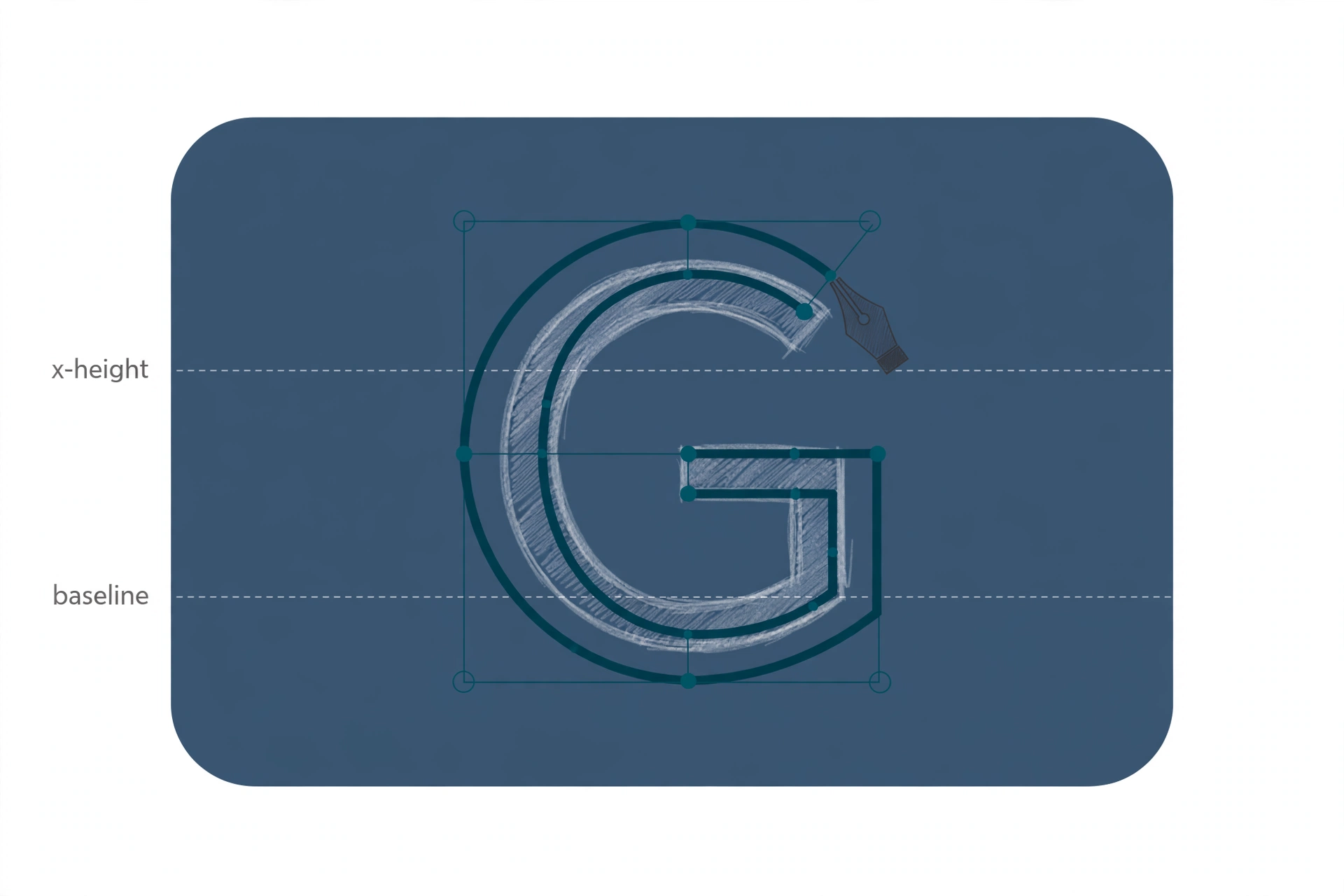
This is Route 4 from our guide to making your own font, and the first true standalone font editor in the series. BirdFont, written by Johan Mattsson, is a desktop application for Windows, Mac, and Linux: you draw glyphs in the editor itself, trace scanned or photographed lettering placed behind the canvas, or import finished SVG artwork from Illustrator or Inkscape and assemble it into a font. It costs nothing to download.
It also carries the most misunderstood licensing terms of any tool in this series, and the misunderstanding matters: fonts created with the free version are tied to the SIL Open Font License. That is not a reason to avoid BirdFont. The escape hatch costs five dollars. But anyone who downloads it assuming “free editor, my font, my rules” is in for a surprise when they read the download page closely, so this post puts the licensing first-class alongside the workflow, exactly as BirdFont itself documents it.
The four versions, because everything depends on which one you have
BirdFont’s download page lists four versions (the fourth is the GPL source release, covered in the licensing section below), and the feature table for the three downloadable binaries splits like this:
| Free | Commercial | Plus | |
|---|---|---|---|
| Price | Free | $4.99 or more | $9.99 or more |
| Commercial use of your fonts | No | Yes | Yes |
| TTF export | Yes | Yes | Yes |
| OTF export | No | No | Yes |
| Color fonts (SVG and COLR) | No | No | Yes |
| Variable fonts | No | No | Yes |
The prices are pay-what-you-want floors (“$4.99 or more”), and a purchase includes upgrades for one year; the version you bought keeps working after that year ends. Included in every version: TTF export, monochrome SVG fonts, kerning, ligature substitutions, alternates, and SVG import. The Plus-only list is where the modern features live: OTF (the CFF flavor), both color font formats, variable fonts, and single-stroke fonts for CNC work.
The workflow, step by step
- Start from a drawing, a scan, or an SVG. BirdFont’s tutorials assume one of three starting points: draw directly in the editor, make a digital image of lettering you drew on paper, or import artwork made in another vector program.
- Create the font and pick your first glyph. A new font opens an overview tab of glyph slots; select the first character you want to build.
- Set up the canvas. If you are tracing, insert the background image, scale and position it, then set the x-height, baseline, and side bearings (the space on either side of the glyph) so your letters share one set of measurements.
- Trace with the pen tool. Right-click adds control points; tie the handles between corner nodes to get smooth curves instead of corners, and build the counter paths (the enclosed spaces inside letters like a and e). Ctrl+P previews the glyph as you work.
- Name and describe the font. A dedicated step in the official tutorials, and not optional decoration: family name, style, PostScript name, version, unique ID, description, copyright, and license notice are all fields the font carries into the world.
- Save, then export. The project must be saved before exporting (Ctrl+E or Command+E, or the Import and Export menu). Skipping the save is the classic beginner mistake the export tutorial warns about. The exported file installs like any other font; our install guide covers the platforms.
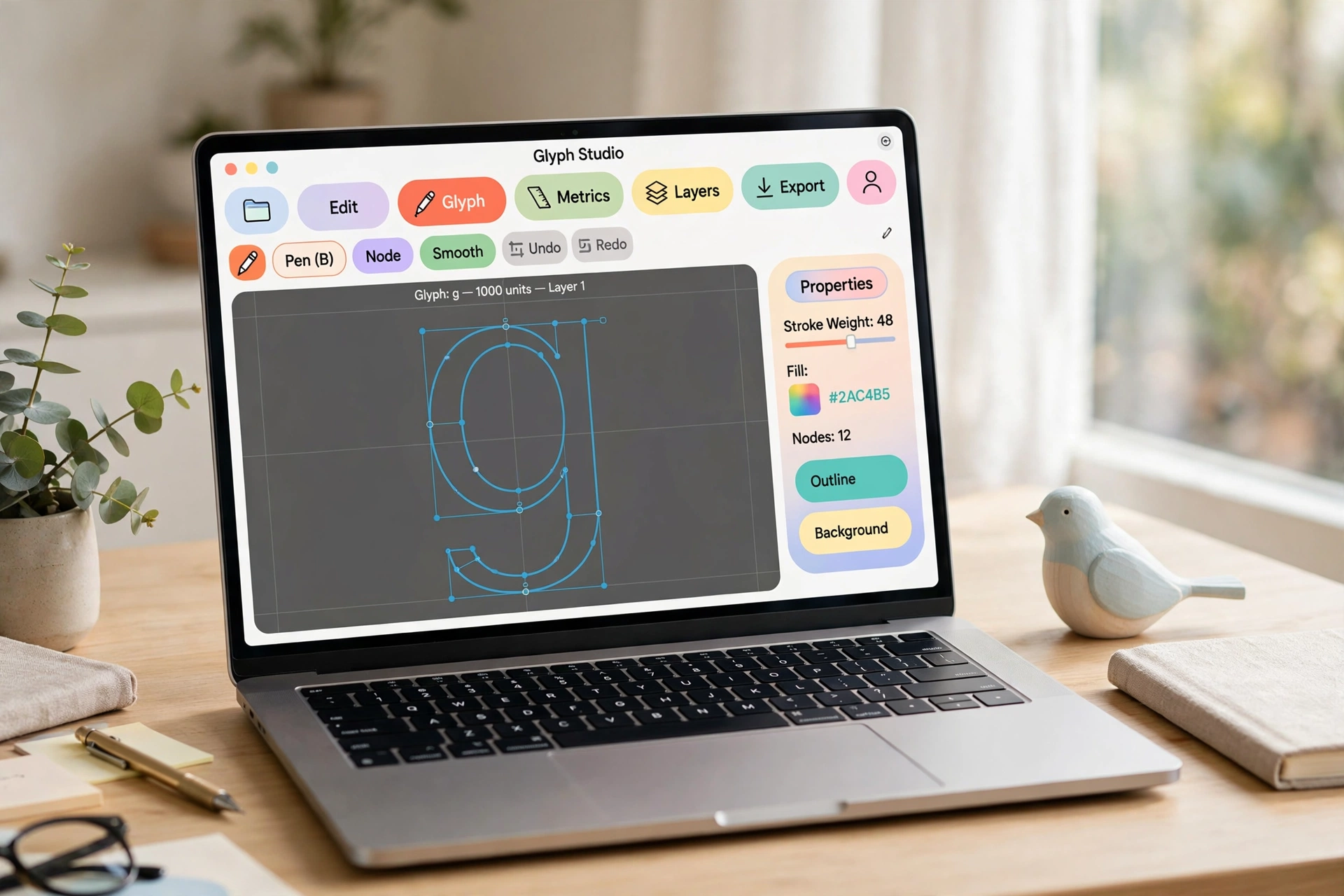
 BirdFontWindows / Mac / Linux · free version is OFL-bound · Commercial $4.99+, Plus $9.99+Visit site
Color and variable fonts live in Plus
BirdFont does support both modern formats, and both are Plus features. Color fonts come in two flavors: COLR with CPAL color palettes, and OpenType SVG (the formats are compared in our color fonts explainer); the color workflow starts by choosing the color font type in the overview tab, and a separate tutorial covers generating a monochrome fallback glyph for applications without color support. Variable fonts allow up to three glyph masters per axis (a weight axis, for example), with the in-between instances interpolated through the GVAR table; Plus can also export a set of static weights from one variable master. Our variable fonts explainer covers how that machinery works.
Exports in the free and Commercial versions are TTF and monochrome SVG fonts. OTF arrives only with Plus. WOFF and WOFF2 appear in many third-party feature lists for BirdFont, but neither shows up in the current official feature table or the export tutorial: if webfonts are your goal, plan on converting, whatever version you buy.
The licensing catch, in BirdFont’s own words
The download page describes the free binary this way, quoted in full: “A binary version that allows you to create free fonts under the SIL Open Font license.” The feature table backs it up: the Commercial use cell for the Free version is blank, while Open Source, Commercial, and Plus all carry the checkmark.
Translated into practice:
- Made it with the free version? Your font is an Open Font License font: free for anyone to use, including commercially, under the OFL’s terms. That is a fine outcome for a huge share of the free fonts in the world (the OFL is the standard permissive font license, covered in our licensing explainer), but it is a decision BirdFont makes for you, not one you make yourself.
- Want to sell your font, or keep it proprietary? That is what the Commercial version ($4.99 or more) is for; its page description is “suitable for commercial fonts.” BirdFont publishes no more detailed statement of output terms for the paid tiers than that, so the safe reading is: paid tiers lift the OFL binding, and the specifics beyond commercial use are yours to set in your own license.
- The open source version is a different thing. Building or running the GPL source release also checks the Commercial use box in BirdFont’s table. The free binary and the open source code are not the same offer, and roundups that call BirdFont “completely free and open source, use it for anything” collapse the two in exactly the way that gets people into trouble.
None of this is a dark pattern: the wording sits on the download page, and the upgrade costs less than lunch. It is simply a term that summary articles consistently fail to mention.
The verdict
BirdFont is the right first standalone editor: a real drawing canvas with tracing and SVG import, on all three desktop platforms, free if your font will be an OFL release anyway, and five or ten dollars if it will not. Plus is the version to buy if you want OTF, color, or variable output, and at $9.99 it remains the cheapest route to a variable font in this entire series. It is the wrong tool if you need WOFF exports directly, or if the OFL binding on free output does not fit your plans and you would rather use a fully free editor with no output conditions at all. That editor is FontForge, the next route in this series.
Sources: the BirdFont download page, editing, naming and export tutorials, the variable fonts page, and the color font tutorial, all read October 2026.