· guides, embedding, powerpoint
How to embed fonts in PowerPoint

Embedding a font in PowerPoint writes the font program into the .pptx file itself, so the deck renders in its real typefaces on a machine that has none of them installed. PowerPoint for Windows does it in File, Options, Save. The font’s own embedding permissions, recorded as fsType, can still refuse.
Why doesn’t a .pptx carry its fonts?
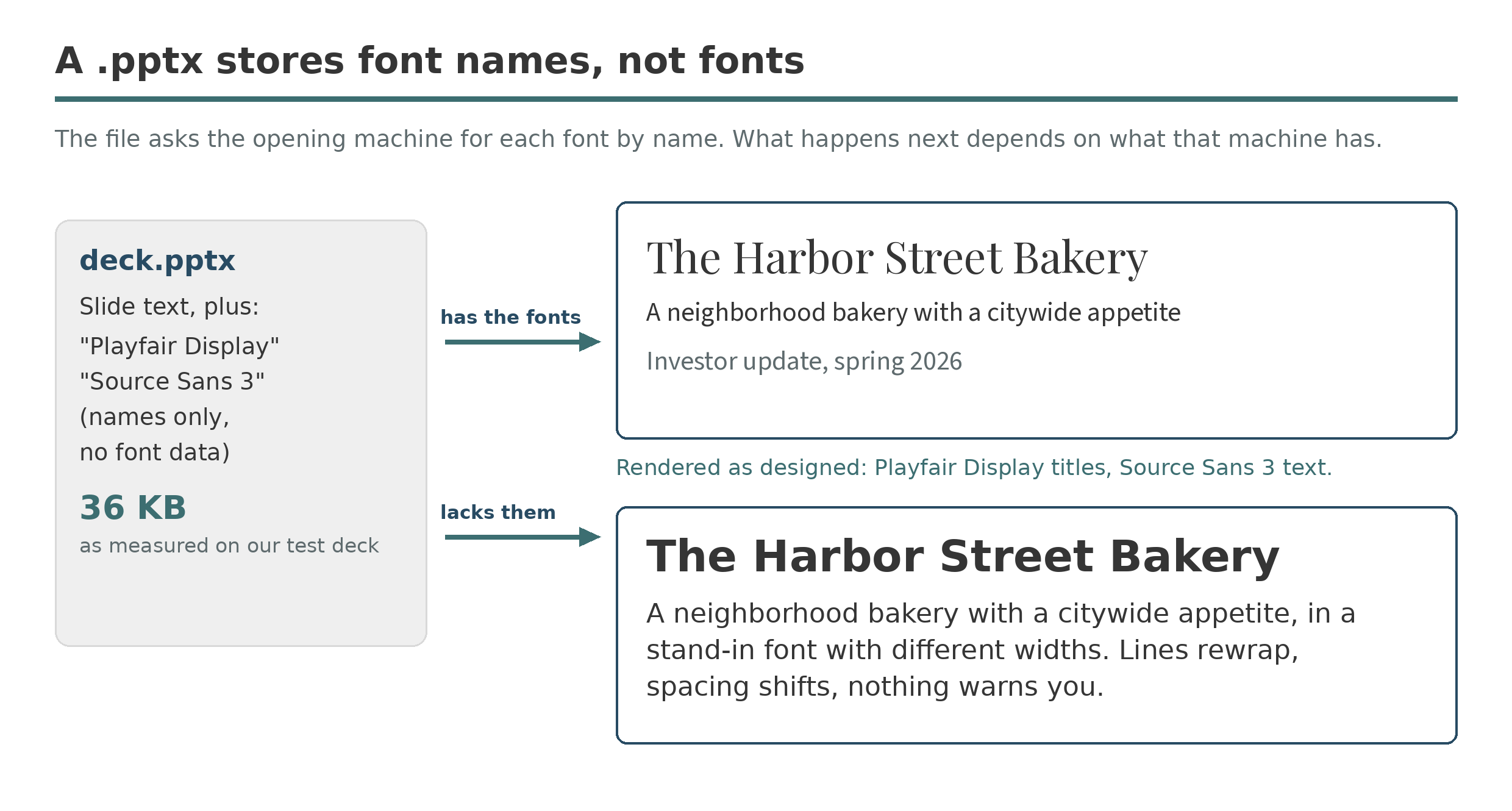
By default, it does not. A PowerPoint file stores the text of your slides and, for each run of text, the name of a font. The font itself, the program that draws the letters, stays on your computer. Open it on a machine that has those fonts and everything renders as designed. Open it on one that does not, a conference-room PC, a client’s laptop, and PowerPoint quietly substitutes the nearest font it can find. The substitute has different letter widths, so lines rewrap, boxes overflow or gap, and a finished deck becomes approximate. No warning appears; the presenter finds out from the projector screen.
Embedding exists to close that gap: it puts the font data inside the file, the arrangement PDFs have used from the start.
How do you embed fonts in PowerPoint for Windows?
The setting lives at the bottom of the Save options, in Microsoft’s own instructions for the feature:
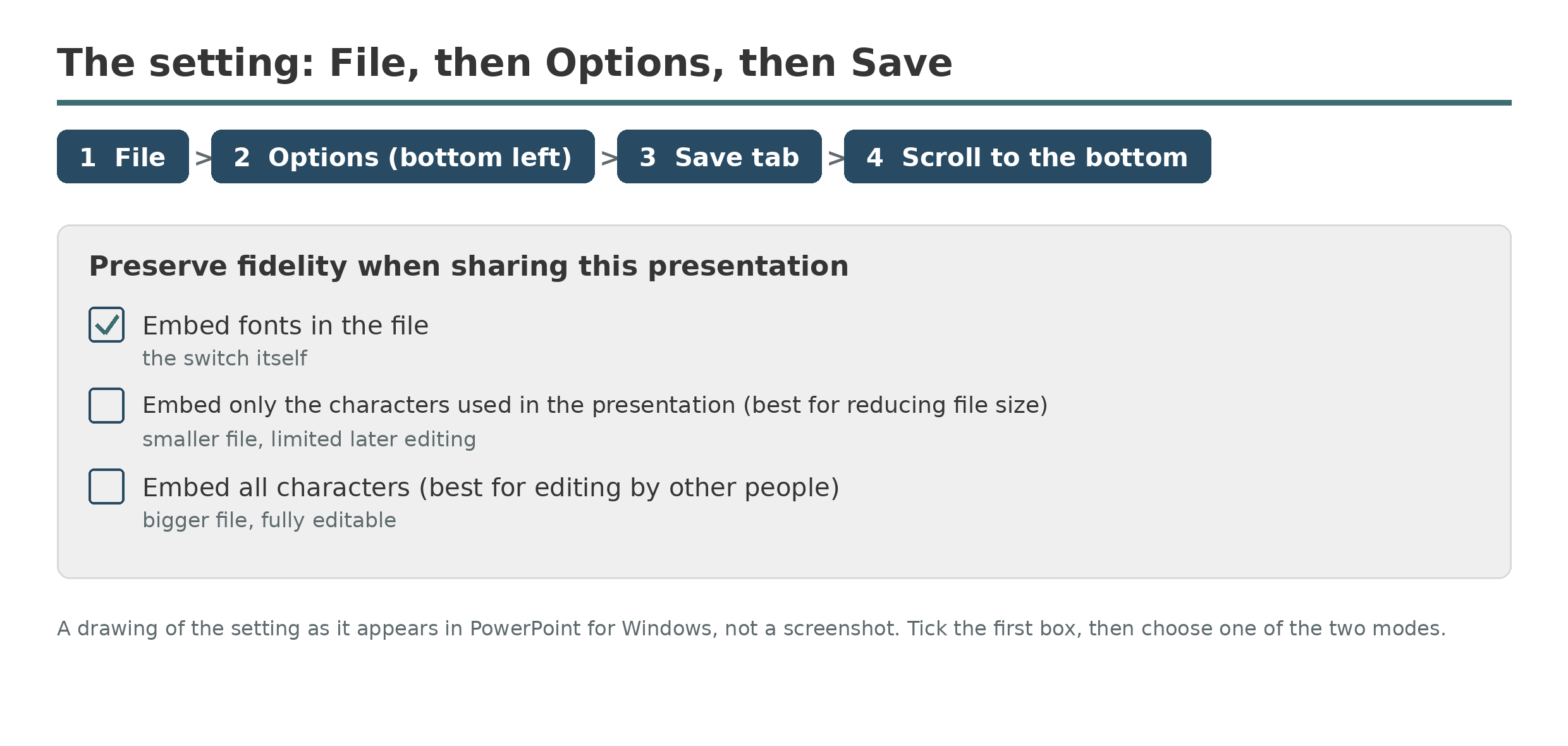
- Click File, then Options, near the bottom left of the window.
- Choose the Save tab in the left column.
- At the bottom, under Preserve fidelity when sharing this presentation, tick Embed fonts in the file.
- Choose a mode: Embed only the characters used in the presentation, or Embed all characters (the next section prices the difference).
- Click OK, then save. The fonts are written into the file at save time, so an unsaved deck is not yet carrying anything.
The setting is per file, so each presentation needs it switched on for itself. It covers the fonts in use; only TrueType and OpenType fonts can be embedded, and it has to be done before the file leaves: embedding is something the author’s copy of PowerPoint does, not something a viewer can switch on afterward.
Only the characters used, or all of them?
Microsoft labels the first mode best for reducing file size and the second best for editing by other people, and both labels are honest. Characters used stores a subset, the glyphs the slides actually show, the same trick a PDF subset plays. Anyone can present the deck, but a later editor who types a character the original never used has nothing to draw it with. All characters stores the complete fonts, and the deck stays fully editable in its own typefaces wherever it lands.
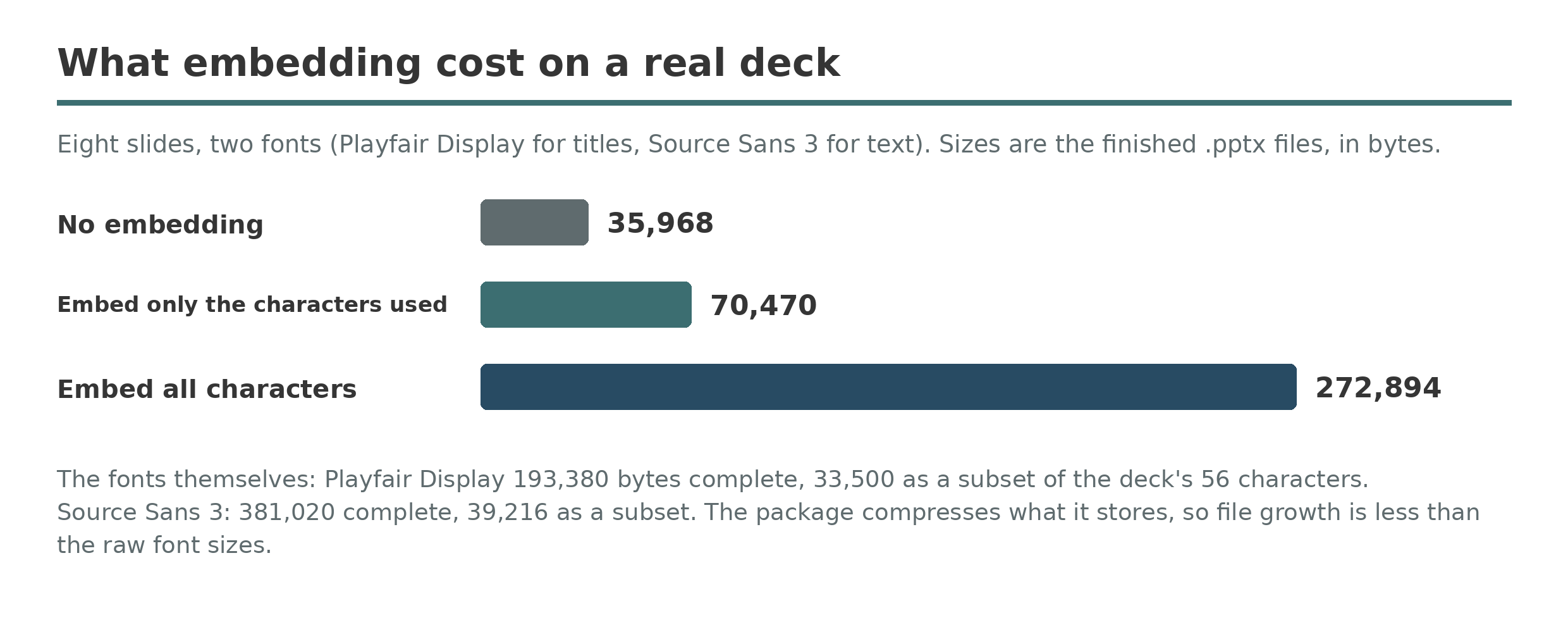
We built an eight-slide test deck, titles in Playfair Display, text in Source Sans 3, and stored it all three ways. Unembedded, it was 35,968 bytes. With only the characters used, 70,470 bytes: the subsets doubled it, and it stayed small enough to email without thinking. With all characters, 272,894 bytes, about seven and a half times the bare deck, because two complete font programs, 193,380 and 381,020 bytes before the package compressed them, now live inside it. On a deck full of photographs or video, numbers like these shrink to a rounding error. On a text deck, they are the whole story. Default to characters used, the mode Microsoft’s file-size guide recommends, and switch to all characters for a deck someone else will keep editing.
Why do some fonts refuse to embed?
Because the font’s license is written into the font. Every OpenType font carries an fsType value in its OS/2 table, set by the foundry, stating what embedding is allowed: installable, editable, preview and print, or restricted. PowerPoint reads it. An installable or editable font embeds without comment. A preview and print font embeds, but the deck then opens read-only on a machine without the font, since editing with it is exactly what the license withholds. A restricted font is refused outright, and saving produces Microsoft’s warning that some of your fonts can’t be saved with the presentation. The machinery is the same one that governs fonts in a PDF, where the strict profiles turn the same bits into pass-or-fail rules.
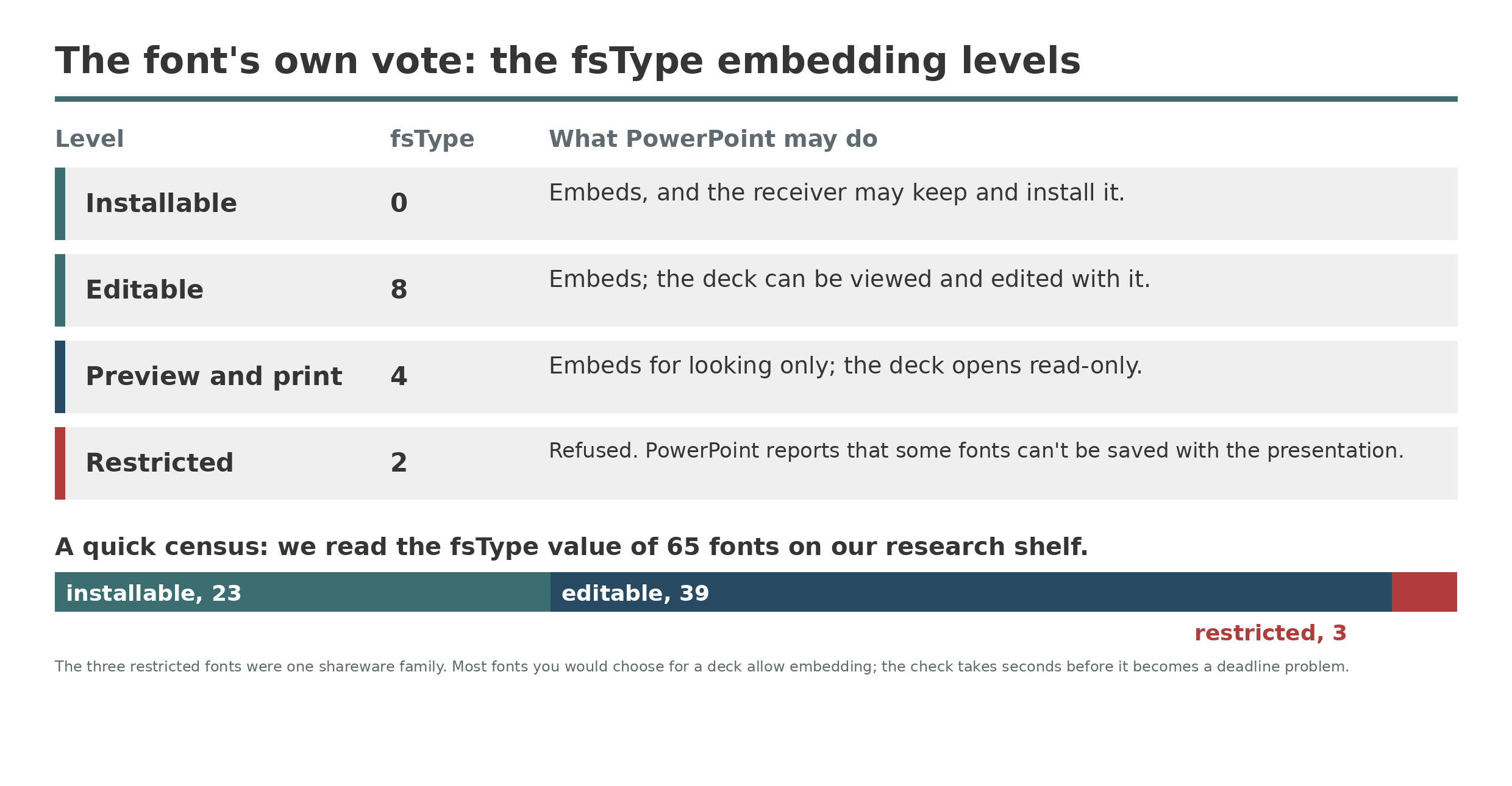
You can read a font’s setting before it surprises you: on Windows, Control Panel, Fonts shows each font’s “Font embeddability” line, the check Microsoft’s troubleshooting notes describe. Embeddability can also be read in bulk. A census of fsType values across a whole library, taken the way our font metrics work takes weight and contrast, tells you which of your fonts will travel. We ran one over 65 fonts from our research shelf: 23 installable, 39 editable, 3 restricted, and all three restricted fonts belonged to a single shareware family. When a font’s bits refuse but its license actually allows embedding, the bits can be corrected instead of replacing the font: our Font Embedding Fixer reads the setting and rewrites it in your browser, and the file never leaves your machine.
Does embedding work on a Mac, or in the browser?
On the Mac, only recently, and only in current builds. Font embedding reached PowerPoint for Mac in the Microsoft 365 line, from version 16.17 onward; the older perpetual releases, the 2016 Mac edition among them, have no embedding at all. Where it exists, the setting sits under PowerPoint, Preferences, Save, with the same two modes.
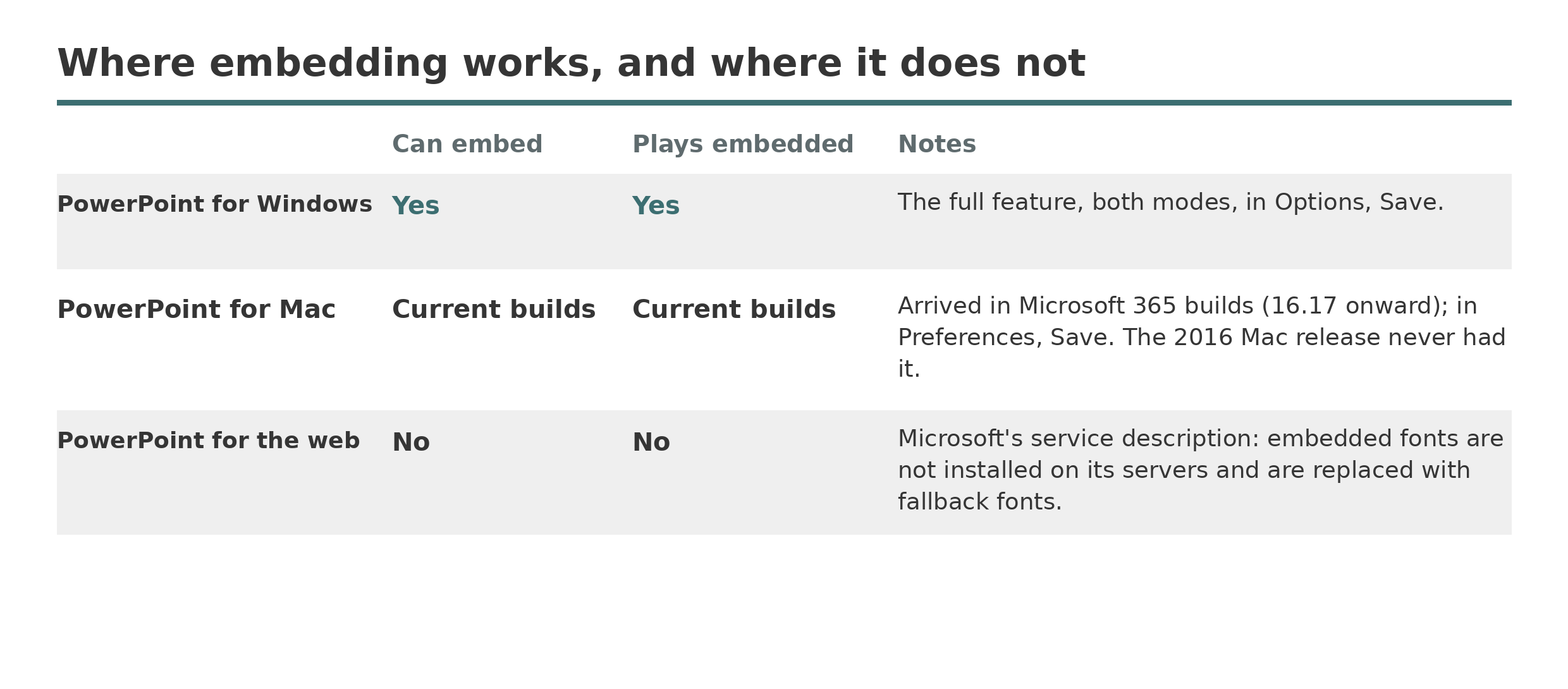
PowerPoint for the web is the hard no. It cannot embed, and it will not use fonts embedded by a desktop copy: Microsoft’s service description for the web app states that embedded fonts are not installed on its servers and are replaced with fallback fonts, so an embedded deck opened in a browser reflows exactly as if nothing had been embedded. If the audience will open the file in a browser, build the deck in Office cloud fonts, which the web app downloads itself, or use the fallback below.
What if the deck has to look right everywhere?
Then export a PDF as well. A PDF carries its fonts as a condition of the format: the exporter embeds them, subset by default, and every reader on every machine renders the same page. That guarantee is the whole reason fonts travel inside a PDF at all. A restricted font can still refuse a PDF export, since exporters obey the same fsType bits, but the fonts that embed in a presentation are the fonts that embed in a PDF.
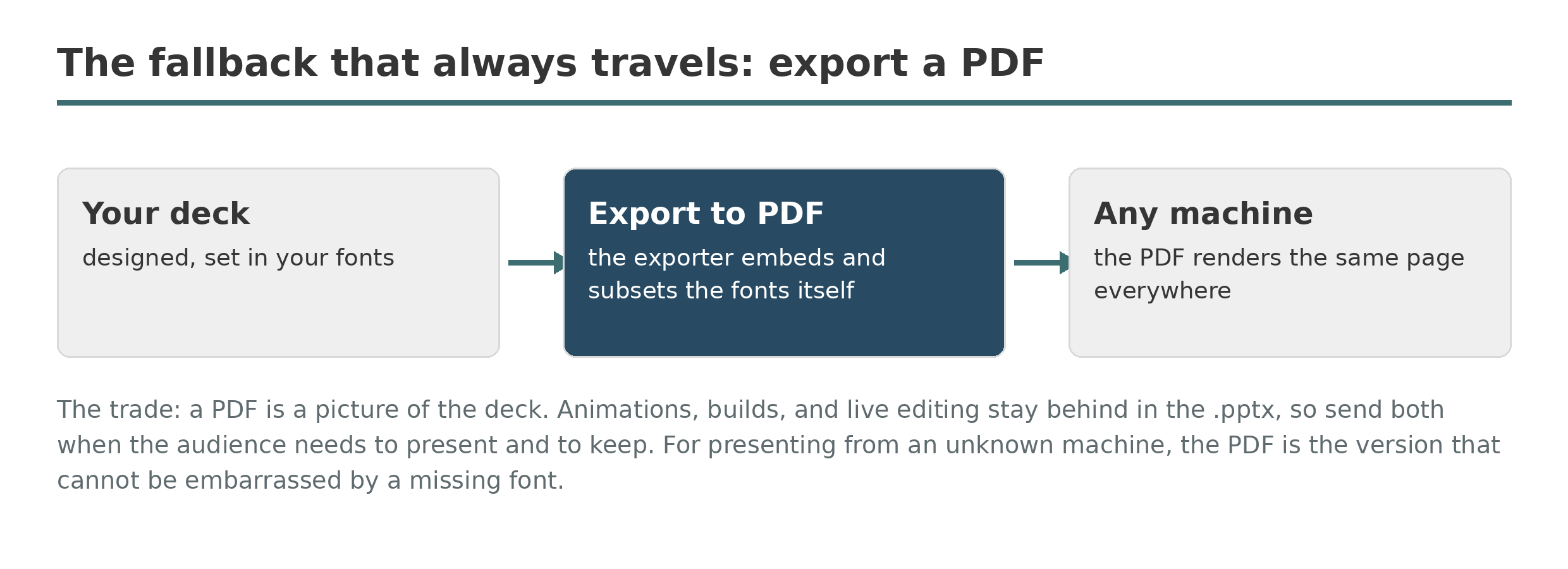
The cost is that a PDF is a picture of the deck, not the deck. Animations, builds, and live editing all stay behind in the .pptx. The practiced habit is to travel with both files: the presentation for presenting and editing, the PDF as the guarantee. On an unknown machine, present from whichever opens correctly, and because the PDF cannot be embarrassed by a missing font, one of them always does.