· photoshop, guides, how-to
How to add fonts to Photoshop
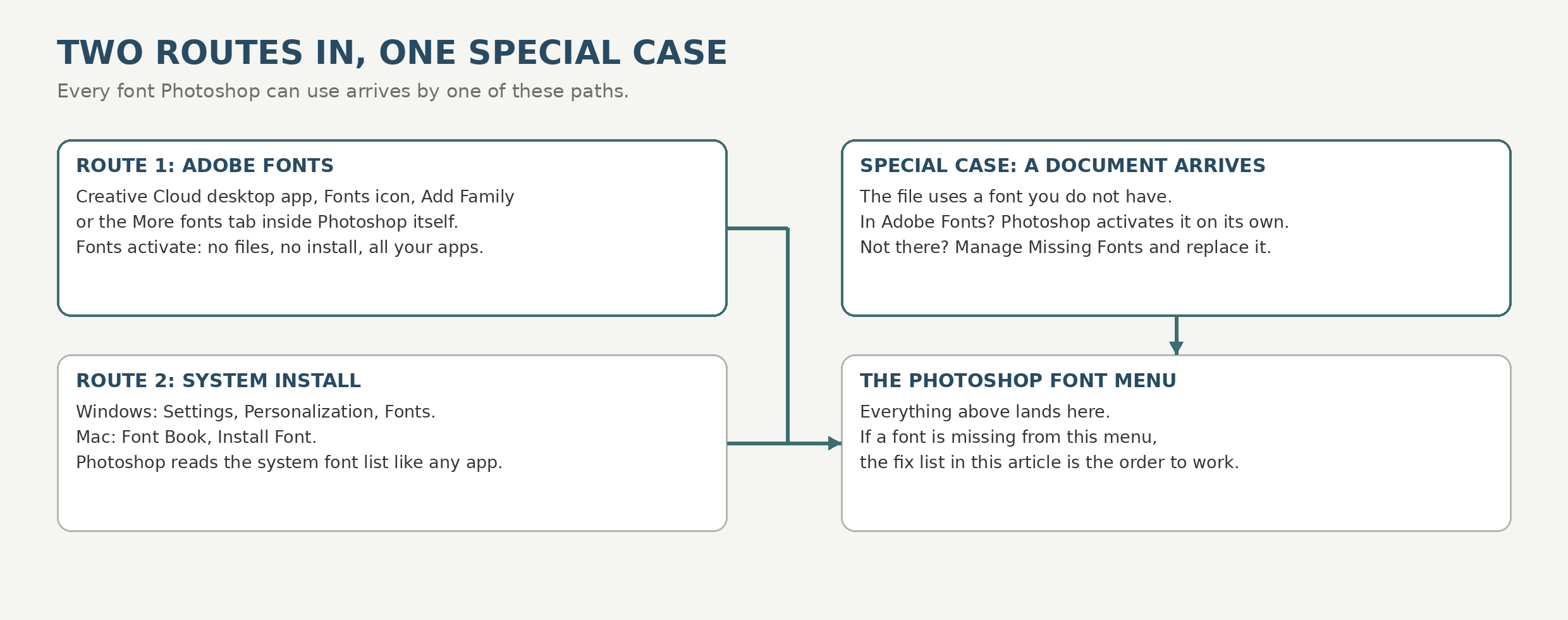
Fonts get into Photoshop by two routes. You can activate them from Adobe Fonts, Adobe’s subscription library, which makes them appear in Photoshop and your other apps automatically; or you can install font files in your operating system, the way you would for any program, and Photoshop reads the system font list. A third thing that looks like adding a font is not: when a document arrives using a font you lack, Photoshop can fetch that font by itself if it exists in Adobe Fonts.
 Adobe PhotoshopAdobe's product page. The font features below are in current Creative Cloud versions of Photoshop.Visit site
Route 1: Activate fonts from Adobe Fonts
This is the route Adobe designs for, and it needs no font files at all.
Through the Creative Cloud desktop app:
- Open the Creative Cloud desktop app and select the Fonts icon.
- Choose “Browse more fonts” to open the Adobe Fonts library.
- On a family page, select “Add Family” to take the whole family, or open the family and select “Add font” beside individual styles.
- The fonts appear in Photoshop’s font menu, and in your other desktop apps as well.
From inside Photoshop: open the font list in the Options bar, Character panel, or Properties panel and go to the “More fonts” tab. That tab reaches the same Adobe Fonts library (Adobe puts it at more than 25,000 fonts) with search, filters, and live previews on your canvas. Selecting a font there downloads and activates it, on that machine and across your Creative Cloud apps.
There is no activation cap to manage: Adobe removed the limit on simultaneously activated fonts back in October 2018. (An older “20 fonts at a time” figure still circulates on blogs; it is a leftover from the Typekit era and Adobe’s current plan documentation contradicts it.)
Route 2: Install the font in your operating system
Photoshop also reads fonts installed at the system level, which is how fonts you download, from FontSpace or anywhere else, reach it.
- Windows: right-click the font file and choose Install, or open Settings, then Personalization, then Fonts, and drag the file in.
- Mac: double-click the font file and choose Install Font in Font Book, or drag the file into Font Book.
Photoshop picks up newly installed system fonts for its menu; if one refuses to appear, work through the fix list below rather than reinstalling the same file repeatedly. For the install itself, step by step, see installing fonts for the overview, plus the guides for Windows and Mac.
When a document arrives with fonts you do not have
Open a file whose fonts are missing and Photoshop handles two cases differently:
- The font is in Adobe Fonts: Photoshop activates it automatically while you are online and signed in. A blue sync icon sits on the affected type layers and turns back into the normal type icon when the font lands.
- The font is not in Adobe Fonts: the layer gets a yellow missing-font badge. You can still move and transform the layer, but editing the text means replacing the font. Choose Type, then Manage Missing Fonts, and for each missing font pick a replacement, or let Photoshop substitute its default (Myriad Pro Regular for Latin text). Until it is replaced, rendering that layer can look pixelated, because Photoshop is showing you a stand-in.
The fix list: installed, but not in the menu
Work these in order. They follow Adobe’s own Photoshop font troubleshooting guide, and most cases end at step 2.
- Update Photoshop. Adobe’s first instruction, and genuinely the fix for a class of font bugs that get patched quietly.
- Delete Photoshop’s font cache. Photoshop keeps a cache of every font it has enumerated, and a stale or corrupt cache is the classic reason a good font hides. Quit Photoshop and the Creative Cloud app. On a Mac, go to /Users/[your name]/Library/Application Support/Adobe/Adobe Photoshop and delete the CT Font Cache folder, then empty the Trash. On Windows, go to \Users[your name]\AppData\Roaming\Adobe\Adobe Photoshop [version] and delete the same folder, then empty the Recycle Bin. Photoshop rebuilds the cache on the next launch.
- Check the format before anything else. Since Photoshop 23.0 (October 2021), Type 1 fonts do not appear in Photoshop at all, even when installed correctly in the system. They are not broken; Adobe ended Type 1 support, and a Type 1 font in an old document shows up as a missing font. The fix is an OpenType version of the same design. (We wrote up the file formats of that era in archaic font formats.) Multiple Master fonts are in the same retired boat.
- Delete the system font cache. If the Photoshop cache was not it: on a Mac, Adobe’s steps are to open Terminal from Applications, then Utilities, and run
sudo atsutil databases -remove. On Windows, delete the .dat files with “FontCache” in their names inside \Windows\ServiceProfiles\LocalService\AppData\Local\FontCache (the folders are hidden by default). - Validate your fonts (Mac). In Font Book, choose All Fonts, select everything, then File, then Validate Fonts. Remove anything Font Book flags as damaged or duplicated. Adobe also maintains a short list of specific known-bad font files that should simply be uninstalled, and warns that if Windows or macOS itself flags a font at install time with a “proceed with caution” warning, the correct move is not to install it.
- Hunt the culprit by halves. If Photoshop crashes or freezes around text, Adobe’s method is isolation: move half your user-installed fonts out of the Fonts folder, test, and keep halving the suspect half until one font remains. Adobe also provides a diagnostic script, FontTest.jsx, on its troubleshooting page, which tests fonts and reports damaged ones. One related preference trick from the same guide: setting Type, then Font Preview Size, to None stops Photoshop from rendering menu previews, which can keep a damaged font from crashing the menu itself.
Formats Photoshop actually accepts today
From Adobe’s current documentation: OpenType (.otf), TrueType (.ttf), OpenType variable fonts (with live Weight and Optical size sliders in the Properties panel; supported since late 2017), and OpenType SVG color fonts (since Photoshop CC 2017, including the bundled Noto Color Emoji SVG). Type 1 and Multiple Master are out, as covered above. One emoji caution straight from Adobe’s guide: color is fragile under edits. Converting an SVG-font text layer to a shape, or warping it, can drop the color back to a black-and-white fallback, and Apple Color Emoji is supported only to a limited extent on macOS.
That is the whole landscape: activate through Adobe Fonts when the font is there, install at the system level when it is not, and when a font hides, suspect the cache, then the format, then the file itself, in that order.